
Debug Xcode Scheme Pre & Post Actions
Going along with my previous post about auto incrementing build numbers in Xcode, I thought it might be useful to share how I debugged Xcode scheme pre & post actions. Normally these actions don’t show error messages in an obvious way, so it can be extremely frustrating when the action fails silently with no explanation.
Here’s the script I used to log pre-action output to a file on my desktop named xcode-pre-action.txt
LOGFILE="$HOME/Desktop/xcode-pre-action.txt" ;

print_pwd () { echo "pwd: $(pwd)" >> $LOGFILE ; }
bump_version () { agvtool bump ; }

echo "" > $LOGFILE ;
echo "Build Pre-Action" >> $LOGFILE
print_pwd ;
echo "PROJECT_DIR: $PROJECT_DIR" >> $LOGFILE ;
echo "cd into project directory" >> $LOGFILE ;
cd "$PROJECT_DIR" ;
print_pwd ;
bump_version 2>> $LOGFILE ;
echo "Done" >> $LOGFILE ;
If you’re like me, you’ll be curious how the script works & want an explanation. Let’s break it down and hopefully learn a bit more about shell scripting.
LOGFILE="$HOME/Desktop/xcode-pre-action.txt" ;In the above code we simply create a variable named LOGFILE and set it equal to the path of a text file on the desktop. Note that HOME is a variable that exists in every MacOS shell session & is the path to the current user’s home directory. We access HOME’s value & add it to our debug file path using quote expansion (surrounding the variable & the rest of the string with double quotes & prefixing the variable with $).
print_pwd () { echo "pwd: $(pwd)" >> $LOGFILE ; }
bump_version () { agvtool bump ; }
Next we define a couple functions to use later in the script. It’s extremely important to wrap any logic that may throw errors in a function, since functions give us access to both output and error messages (errors thrown in un-scoped or top level code in Xcode pre/post actions aren’t displayed anywhere obvious). Our first function print_pwd uses the echo command to create text output and append that text to the log file. Notice that we use $ along with parenthesis this time to actually execute the pwd command and insert its output. The >> symbols following our echo command redirects the output of echo to our file. A single **> **will replace the entire file contents while a double >> will append to the file. The second function bump_version performs the version bump we talked about in my previous post. I put the version bump logic inside the function in order to access any error thrown by agvtool bump (although I have since learned that it fails silently 😭).
Now we’re getting to the good stuff:
# 1
echo "" > $LOGFILE ;
#1 - Use echo with a blank string to clear out the log file contents. Note how we use > to overwrite the entire file rather than >> which only appends to the file.
# 2
echo "Build Pre-Action" >> $LOGFILE
#2 - Use echo to add some text to the log file (using >> to append the text).
# 3
print_pwd ;
#3 - Call our print_pwd function to print the current working directory to our log file.
# 4
echo "PROJECT_DIR: $PROJECT_DIR" >> $LOGFILE ;
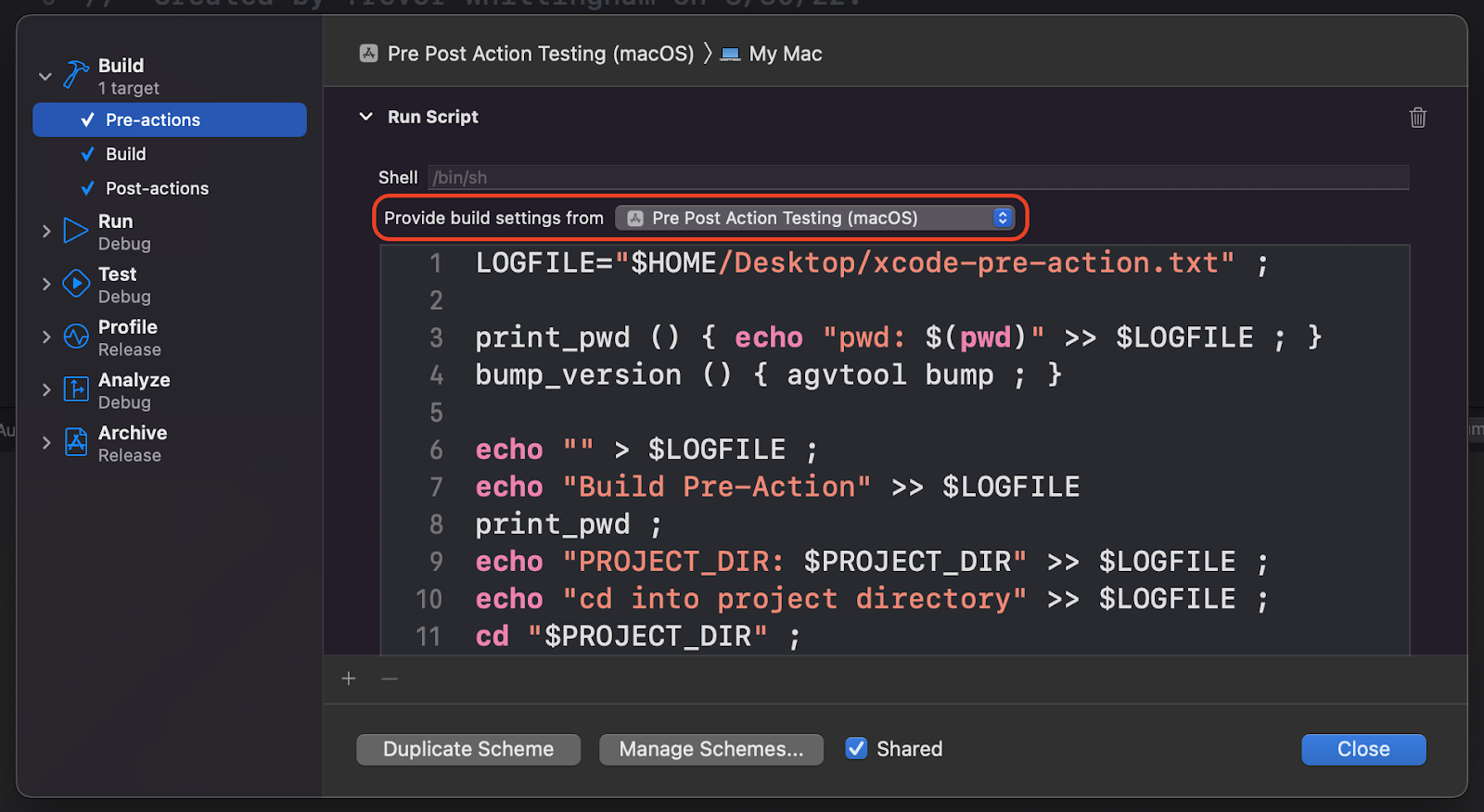
#4 - Use echo and quote expansion to log the contents of the PROJECT_DIR variable to the log file. Note that this PROJECT_DIR variable is provided by Xcode when we select our app target in the “Provide build settings from…” dropdown of the Scheme > Pre-actions > Run Script settings (see screenshot below).
# 5
echo "cd into project directory" >> $LOGFILE ;
#5 - Use echo again to add a descriptive entry to our log file.
# 6
cd "$PROJECT_DIR" ;
#6 - Use cd to change the active directory to the project directory. Note that we have to use string expansion (double quotes and prefix the variable with $) in order to access the PROJECT_DIR variable contents.
# 7
print_pwd ;
#7 - Call our print_pwd function again to print the current working directory to our log file & verify that we’ve opened the correct directory.
# 8
bump_version 2>> $LOGFILE ;
#8 - Call the bump_version function and use 2>> to redirect any error output to our log file. The 2 is file descriptor 2, which means standard error. Standard output is file descriptor 1 and can be redirected with >> or 1>>. In our case, 2>> "$LOGFILE" appends any stderr output from the function call to the log file, being careful to use a double >> so we only append rather than overwrite. I’d like to mention again that agvtool bump doesn’t throw errors when it fails, so this wasn’t necessarily helpful.
# 9
echo "Done" >> $LOGFILE ;
#9 - Use echo one more time to add an entry to our log file.
Bonus: If you’d like to see some real shell function error logging in action, just add the following code to your Run Script action (at the very bottom works just fine)
error_function () { cd non_existent_directory_name ; }
error_function 2>> $LOGFILE ;
This will append the error message to your log file for easy debugging (unless you actually have a folder named non_existent_directory_name).
Here’s a link to a gist with the code we reviewed above.
Thanks for reading!